
In this article
A useful LinkedIn profile makes your professional background easy to understand. Someone should be able to identify the work you do, the skills you can demonstrate, and the kinds of opportunities that fit your situation.
For a remote job search, that also means separating three things: where you live, where an employer can hire you, and whether you want remote, hybrid, or on-site work. Writing “remote” in your headline does not resolve all three.
This guide covers the profile sections worth reviewing, examples you can adapt, and the settings LinkedIn documents for job seekers. It does not promise a search position, a particular number of recruiter messages, or an interview.
Visual note: The four screenshots show LinkedIn’s official Help pages captured on October, 2026. They document the published instructions; they are not captures of a signed-in candidate profile. LinkedIn’s embedded editor illustration is an older example, and layouts or labels can vary by device, account, or rollout.
Understand what recruiters can search
LinkedIn’s Recruiter search-filter documentation describes filters for job titles, skills, locations, and other criteria. Job-title filtering uses titles in Experience. The skills filter can use explicitly listed skills and relevant profile keywords. Recruiter and Recruiter Lite do not have identical filter availability.
The practical implication is to describe your work accurately using recognizable terms. A playful headline can be memorable, but it should not obscure your profession. A skills list should reflect capabilities you can explain, rather than every term appearing in a job advertisement.
Search filters are not a published formula for ranking candidates. There is no basis here for claiming that a connection count, daily posting schedule, or repeated keyword automatically puts your profile above someone else’s.
1. Write a headline that identifies your work
Your headline is the line under your name. LinkedIn confirms that it appears in search results and can differ from your current job title.
An effective starting structure is:
Role or professional direction | Relevant specialty | Tools, domain, or type of work
Use only the parts that help explain your background. You do not have to use separators, fill the available space, or put “Open to Work” in the text.
Headline examples
These are writing examples, not real candidate profiles. Choose terms that match your own experience.
| Profile direction | Less informative wording | More specific example |
|---|---|---|
| Software engineering | Passionate tech enthusiast seeking opportunities | Backend Software Engineer | Python, PostgreSQL & APIs | Distributed Product Teams |
| Customer success | Customer-focused professional | Customer Success Specialist | SaaS Onboarding, Account Support & Knowledge Bases |
| Marketing | Results-driven digital marketer | Content Marketer | SEO, Editorial Planning & B2B SaaS |
| Career transition | Future data superstar | Operations Professional Building Data Analytics Skills | SQL & Power BI Projects |
The transition example signals a direction without claiming paid experience the person does not have. If you are unsure which existing skills support your target role, Jobicy’s guide to identifying transferable skills can help you choose relevant evidence.
Where to edit: Open your profile, select the edit icon in the introduction section, update the Headline field, and save.
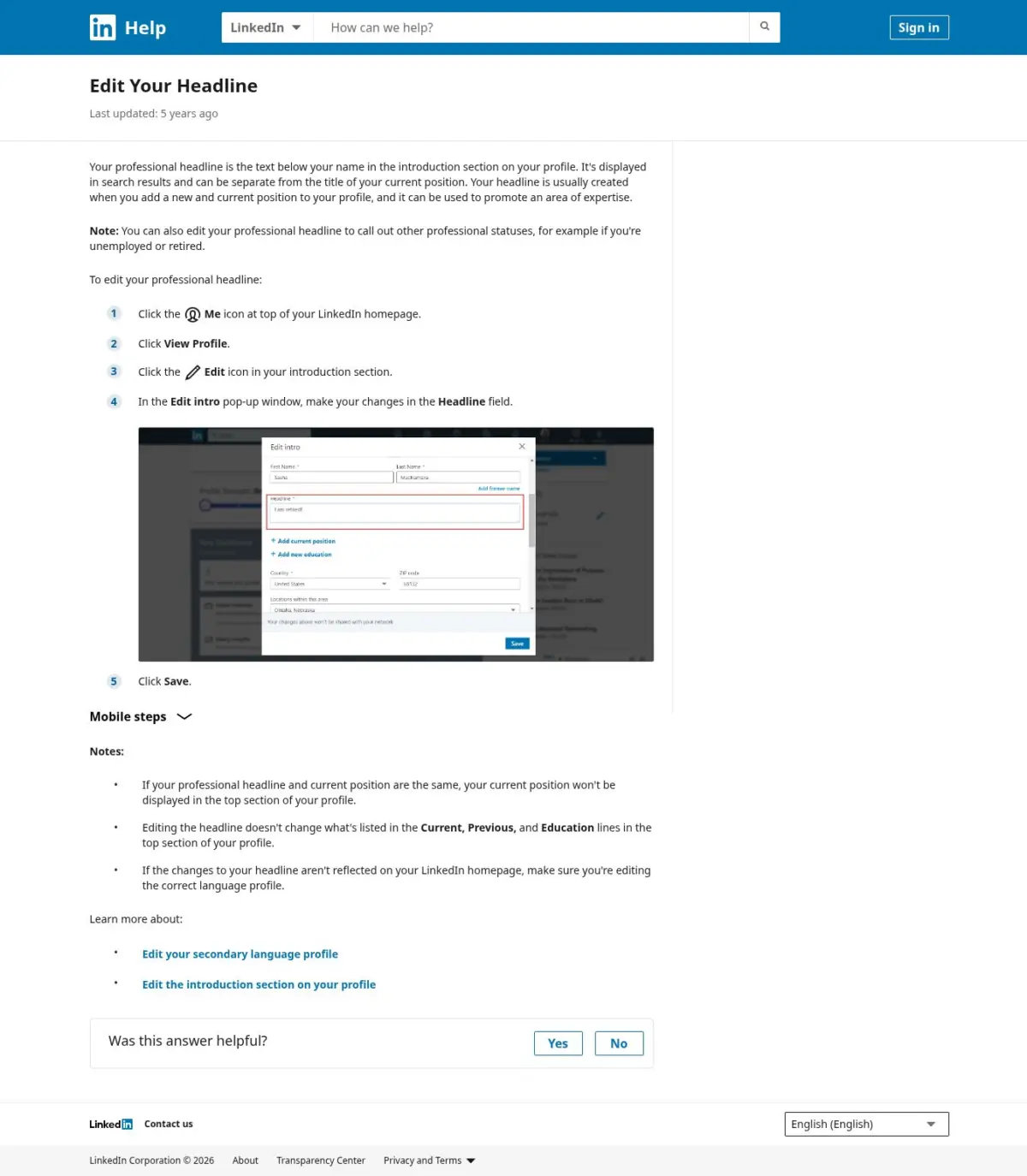
Figure 1. LinkedIn’s published headline instructions. The embedded editor image is illustrative and should not be treated as a capture of the current signed-in interface. Source: LinkedIn Help; page captured October 5, 2026.
2. Use About to explain your contribution
The About section gives you room to connect your skills, work, and career direction. Open with what you do and whom you help. Then add the context a headline cannot provide.
A useful sequence is:
- The work you do or the role you are moving toward.
- The problems you have handled and how you approached them.
- Evidence, such as a project, responsibility, work sample, or verified result.
- Relevant preferences or a clear invitation to contact you.
Write in your own voice. Avoid a paragraph made entirely of adjectives such as “dynamic,” “innovative,” and “results-driven.” Readers need information that supports those descriptions.
About example: customer success
The following is a template. Replace every bracketed detail with something accurate, and remove statements that do not describe you.
I help [type of customers] get started with [type of product] through onboarding, troubleshooting, and clear support documentation.
In my role at [employer], I am responsible for [scope]. A recent example is [project]: I [specific contribution], which resulted in [verified outcome, or a factual description if no reliable metric is available].
My day-to-day tools include [tools actually used]. I coordinate with [teams] through written handovers, documented decisions, and [other working practice you can explain].
I’m interested in [target roles]. I’m based in [actual location] and can provide [realistic time-zone overlap]. You can contact me through LinkedIn about roles with [relevant preferences].
About opening for a career change
“My background is in [current field], where I developed [relevant capabilities]. I’m now building experience in [target field] through [course, volunteer work, or personal project]. My project on [topic] demonstrates [specific skill], and I’ve linked the work for review.”
A personal project is useful evidence when clearly labeled. It should not become a fictional client engagement or job.
Where to edit: Go to About on your profile and select its edit icon. LinkedIn’s About editing instructions describe the desktop and mobile routes. If you maintain another language version, check that version separately.
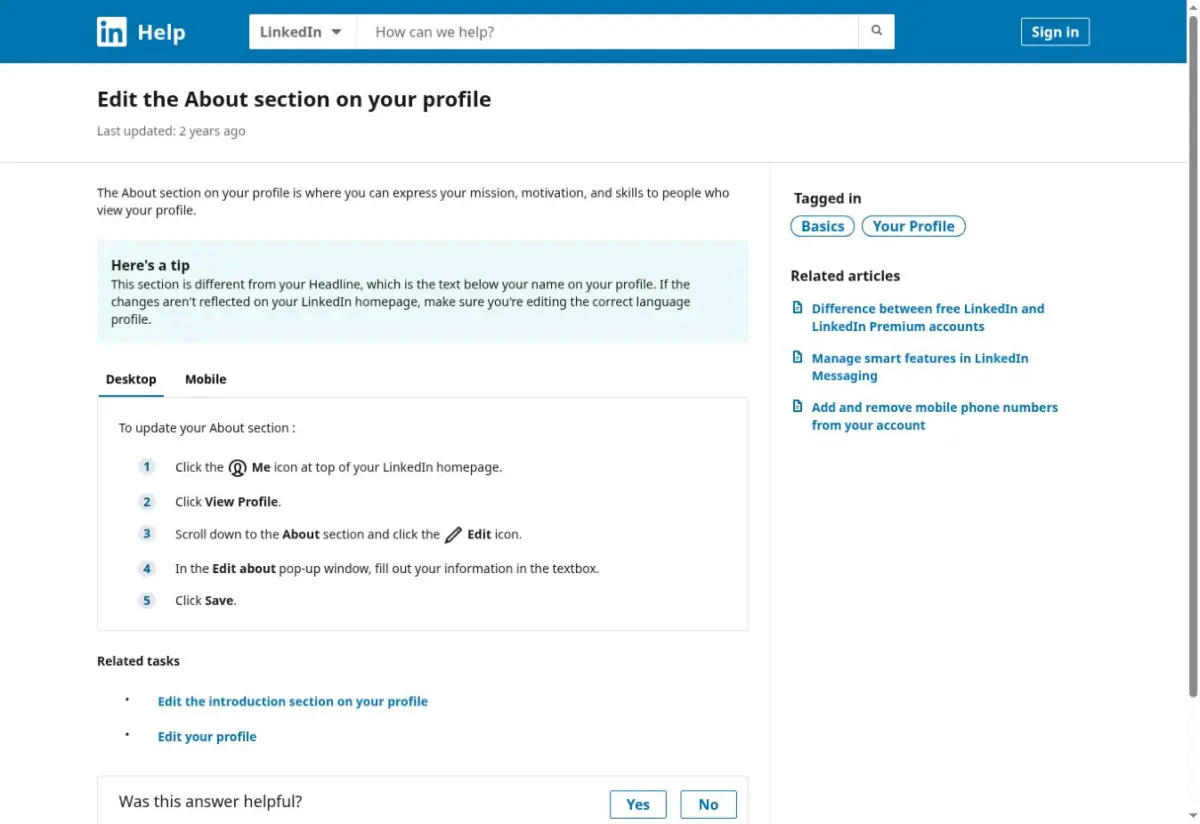
Figure 2. Official instructions for opening the About editor. Source: LinkedIn Help; captured October 5, 2026.
3. Turn Experience into evidence
Keep job titles, employers, dates, and employment arrangements accurate. If an internal title is unfamiliar, explain the function in the description rather than awarding yourself a more senior title.
For each relevant position, give a reader enough information to understand the scope of the work. Explain what you owned, how you approached it, and what happened. Quantify results when you have a reliable record; a useful description does not require an invented percentage.
Experience example
[Actual job title] — [Actual employer]
[Employment type] | [Accurate dates]
- Owned [process or responsibility] for [team, product, or customer group].
- Built or improved [deliverable] using [relevant tool or method], addressing [specific problem].
- Contributed to [verified result] during [measurement period], with responsibility for [your part of the work].
- Coordinated [handover, release, or customer workflow] with colleagues across [actual locations or time zones].
“Handled customer questions” becomes more useful when it explains the support channels, product, escalation responsibilities, or documentation involved. If there is no defensible metric, describe the deliverable and its use.
For remote work, evidence might include a documented handover, a written decision process, independent delivery against a brief, or coordination across time zones. “Excellent remote worker” is harder to assess without an example.
LinkedIn’s Experience guidance requires organizational associations to reflect actual professional experience. Using a company’s product is not employment at that company. The same guidance confirms that skills can be associated with individual experiences.
Where to add a role: Use Add profile section → Core → Add position. To update a listed role, open Experience and use the relevant edit control.
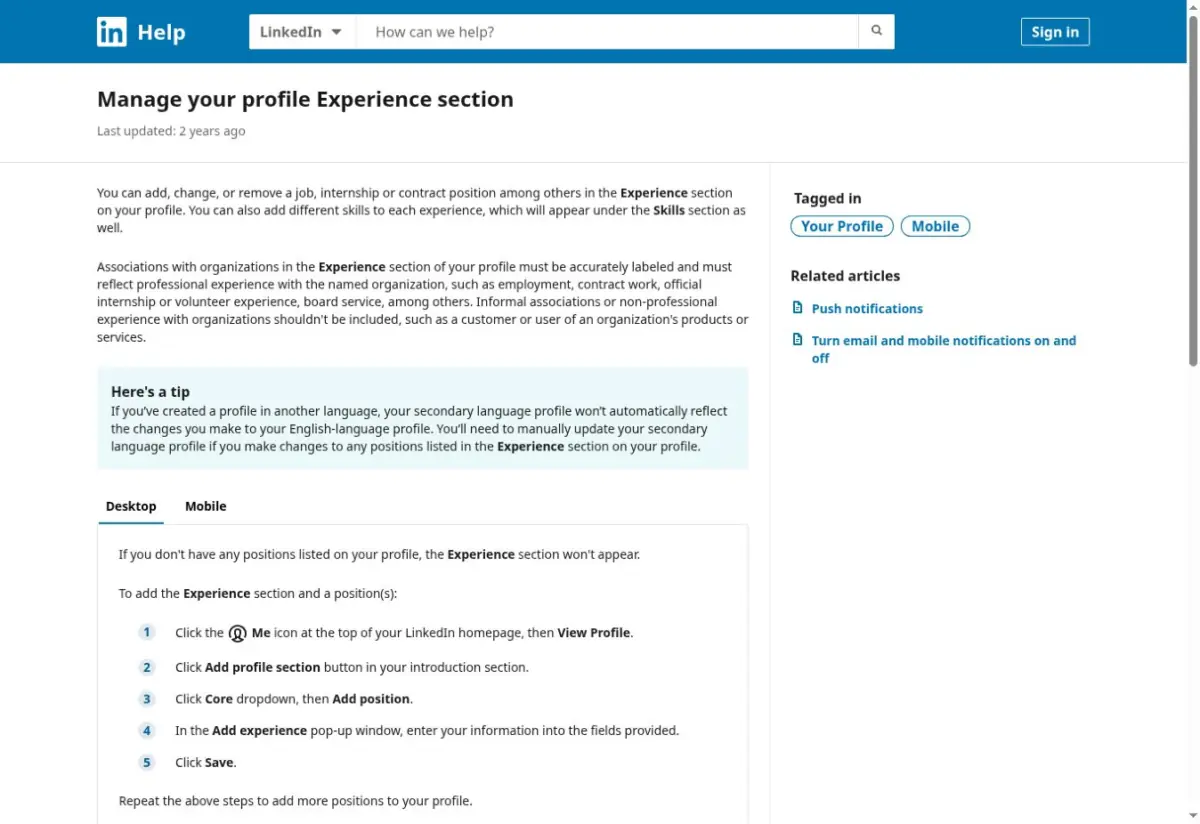
Figure 3. LinkedIn’s guidance on accurate Experience entries and the Add position route. Source: LinkedIn Help; captured October 5, 2026.
If your history includes a break, keep dates truthful and share only the context you want to make public. See Jobicy’s guide to explaining a resume gap for ways to describe your timeline without inventing work.
4. Choose skills you can support
Read a small selection of relevant job descriptions and note recurring capabilities. Compare them with work you have actually done. Add the supported matches using recognizable skill names, then connect them to examples in Experience or your portfolio.
LinkedIn currently allows up to 100 skills. That is a feature limit, not a recommendation to add 100. Its skills-ordering instructions also explain how to reorder entries.
Skills examples by role
| Role | Possible skills to select if supported | Evidence to show |
|---|---|---|
| Backend engineer | Python, SQL, PostgreSQL, REST APIs, Git, automated testing | A repository, service you built, or a description of your contribution to a released feature. |
| Customer success specialist | Customer onboarding, customer relationship management, technical support, knowledge management | An onboarding resource, documented escalation process, or an accurate account-support example. |
| Content marketer | Content strategy, SEO, copywriting, editorial planning, analytics | Published work, a content brief, or a campaign description with substantiated results. |
| Data analyst | SQL, Microsoft Excel, Power BI, data visualization, data cleaning | A clearly labeled analysis project explaining the data, methods, and limitations. |
These are editorial examples, not lists of LinkedIn’s exact selectable labels. Choose the closest accurate option available in your account.
An endorsement adds another person’s acknowledgment, but it does not replace evidence of what you can do. Do not add a skill merely because you saw its name in a vacancy.
Where to add skills: Use Add profile section → Core → Add skills, choose the appropriate skill, indicate where you used it if prompted, and save.
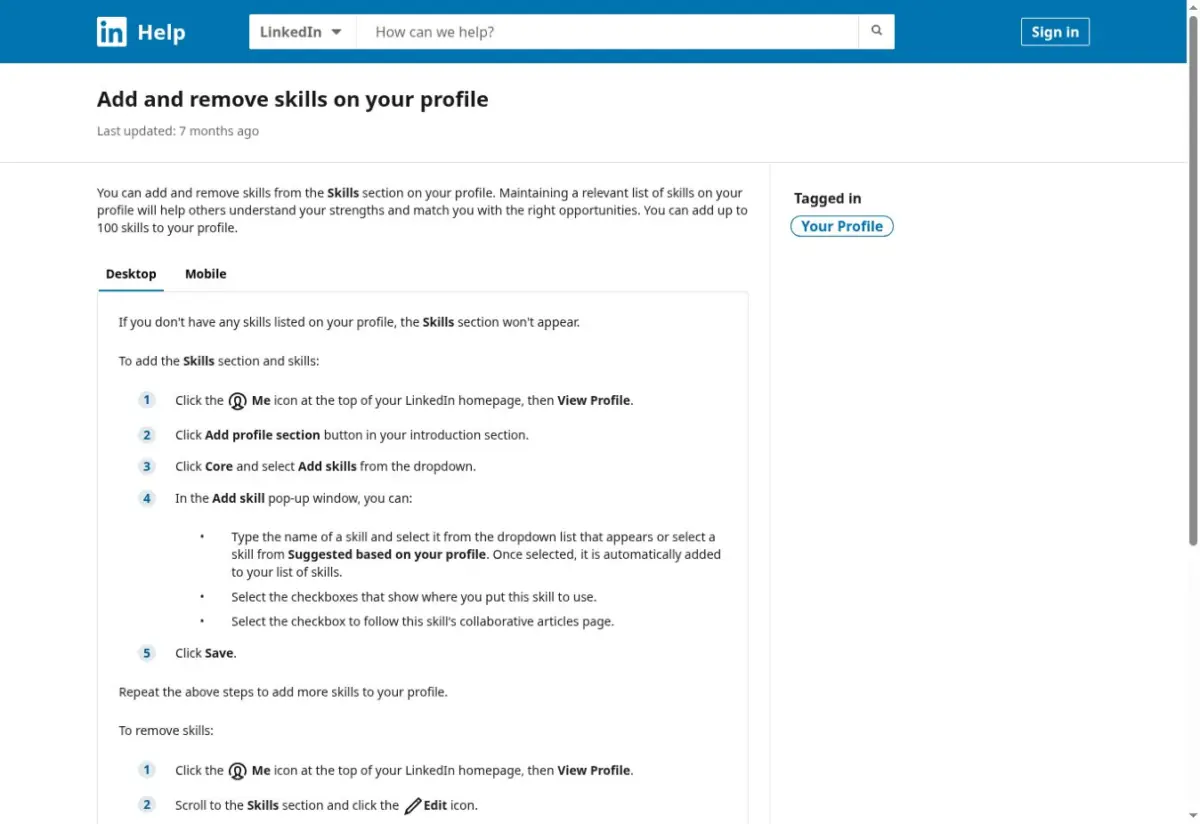
Figure 4. LinkedIn’s published skill limit and desktop Add skills instructions. Source: LinkedIn Help; captured October 5, 2026.
5. Set Open to Work preferences deliberately
LinkedIn’s Open to Work instructions describe job preferences and visibility choices. On desktop, the documented profile route is Me → View profile → Open to → Finding a new job. Some accounts may see different wording. Preferences can also be accessed through Jobs.
Choose relevant job titles, locations, workplace types, start date, and employment types. Review the visibility setting before saving:
| Visibility choice | LinkedIn’s documented meaning |
|---|---|
| All LinkedIn members | Shares your availability with the network, including people at your current employer, and adds the Open to Work photo frame. |
| Recruiters only | Shares the signal with LinkedIn Recruiter users. LinkedIn tries to hide it from recruiters at your current employer but does not guarantee complete privacy. |
| Visible only to you | Uses your preferences to tailor job recommendations. |
Choose according to what you intend to share. No badge choice guarantees better recruiter interest.
For remote roles, select the applicable workplace preference rather than relying only on your headline. LinkedIn’s Recruiter workplace-type documentation explains how recruiters can filter candidates who are Open to Work and interested in remote, hybrid, or on-site positions.
6. Make your location and remote availability understandable
Keep your profile location accurate. If you want to relocate or consider another market, use the relevant preferences and explain your plans rather than pretending to live there.
For a remote opportunity, an employer may still need a worker in a particular country, time zone, or employment arrangement. A clear About statement can help distinguish your preferences from your actual availability.
Example template:
“Based in [country]. Interested in remote [role type] positions with [realistic overlap]. Open to [employment arrangements you would consider], subject to the employer’s hiring requirements.”
Do not claim work authorization you do not hold or unlimited availability you cannot sustain. You can ask a recruiter about country eligibility and required overlap before moving further in the process.
Use Jobicy’s remote job listings to examine the location and scheduling requirements attached to the roles you want. Those requirements are more informative than assuming every remote job is available worldwide.
7. Use Featured to show relevant work
Choose samples that help someone assess your capabilities: a case study, published article, project repository, presentation, or portfolio link. Explain your contribution and label personal, course, and volunteer projects accurately.
According to LinkedIn’s Featured FAQ, the section supports posts, articles, documents, images, and links. It also says Featured content is not discoverable through search and requires the viewer to be signed in. Treat it as evidence for someone already viewing your profile, not as a search-ranking shortcut.
Uploading a resume to a visible profile section is optional. If you choose to do it, prepare a version suitable for the audience: check contact details, home address, references, and confidential information. A profile does not need a publicly displayed resume to explain your experience.
If you want a consistent resume alongside the profile, use Jobicy’s resume builder and compare job titles, dates, and claims before applying.
8. Check what you share when updating the profile
LinkedIn’s profile-update sharing guidance explains the network-notification setting. Review it before changing a role or education entry if you do not want to announce an update.
Turning off an update notification does not make the edited information invisible to people who can view your profile. Likewise, a private job-search preference does not make everything else on the profile private.
Check contact information, any linked documents, and how you have described availability. Keep public statements consistent with your resume and with information you can substantiate in an interview.
9. Build relevant professional connections
Connect with people whose work relates to your field, target employers, or interests. A short, specific message is more useful than a generic request for a job.
Connection-note example:
“Hi [Name], I read your post about [specific topic]. I work on [relevant area] and would be interested in following your updates. Happy to connect.”
Use it only when the referenced post and connection are real. You do not need to describe yourself as a longtime follower if you just discovered the person.
Share work or join discussions when you have something useful to contribute. There is no posting quota in this guide and no claim that adding connections automatically changes your recruiter-search position.
10. Respond to recruiter messages with useful questions
If an opportunity interests you, clarify the role before sending additional information or committing time to interviews.
Reply example:
“Thanks for reaching out. Could you share the job description, compensation range, countries eligible for hiring, and required time-zone overlap? I’m particularly interested in [type of work], so I’d also like to understand the team and role scope.”
You can decline an irrelevant message or respond when you have time. Check the sender and employer independently before sharing sensitive information. An inbound message is an invitation to assess an opportunity, not proof that it is suitable.
Review the profile before relying on it
Use this final check:
- The headline makes your role or direction understandable.
- About explains your contribution and supports it with accurate context.
- Experience uses correct employers, titles, dates, and project labels.
- Skills match work you can discuss or demonstrate.
- Job preferences reflect your location, availability, and intended visibility.
- Work samples are accessible to their intended audience and safe to share.
- Your resume and profile agree on the material facts.
Keep applying to relevant roles and talking with people in your field. A clearer profile supports those efforts; it does not replace them. Update it when your work, evidence, or preferences change, and use the official LinkedIn links if the interface differs from the screenshots.
 About the author Yuri Ko
Hi 👋🏼 I’m Yuri, founder of Jobicy — a global platform for remote jobs and digital careers. I’ve spent years building hiring tools, career resources, and supporting distributed teams. My mission is to make remote work accessible, transparent, and human-centered. Through my articles and products, I share honest, actionable insights to help people grow their careers and help companies succeed in the modern work environment.